
Salesforce for Outlook Replacement Options and Their Gaps
Salesforce for Outlook replacement guide: what the Outlook integration, EAC, Inbox and sync tools capture and miss, plus a checklist before December 2027.


CEO of ZUUZ. He scaled Cloud Box Technologies from 0 to $25M ARR in IT services and distribution before building ZUUZ. Connect on LinkedIn
TL;DR: Salesforce is retiring Salesforce for Outlook in December 2027, when it stops syncing contacts, events and tasks and its side panel disappears. The Salesforce for Outlook replacement Salesforce recommends is the Outlook integration plus Einstein Activity Capture, with Salesforce Inbox as an optional license and third-party sync tools for gaps such as task sync. None of them turns what a buyer says into updated opportunity fields, which is the job of a capture layer on top of the CRM. ZUUZ sits on top of whichever path is chosen and writes what changed onto the deal, and a free trial connects one mailbox and reads 90 days of history before any migration decision is made.
- Full product retirement for Salesforce for Outlook is scheduled for December 2027, rescheduled from June 2024. After that it no longer syncs contacts, events or tasks, and the side panel is gone.
- Salesforce names the Outlook integration and Einstein Activity Capture as the next-generation replacements. Salesforce Inbox unlocks extra productivity features with a per-user license.
- Salesforce for Outlook synced Outlook tasks in both directions. Teams that still run follow-ups from the Outlook task list need to plan task handling as its own requirement.
- Every sync option answers whether an email is in Salesforce. None of them answers whether the email changed the deal.
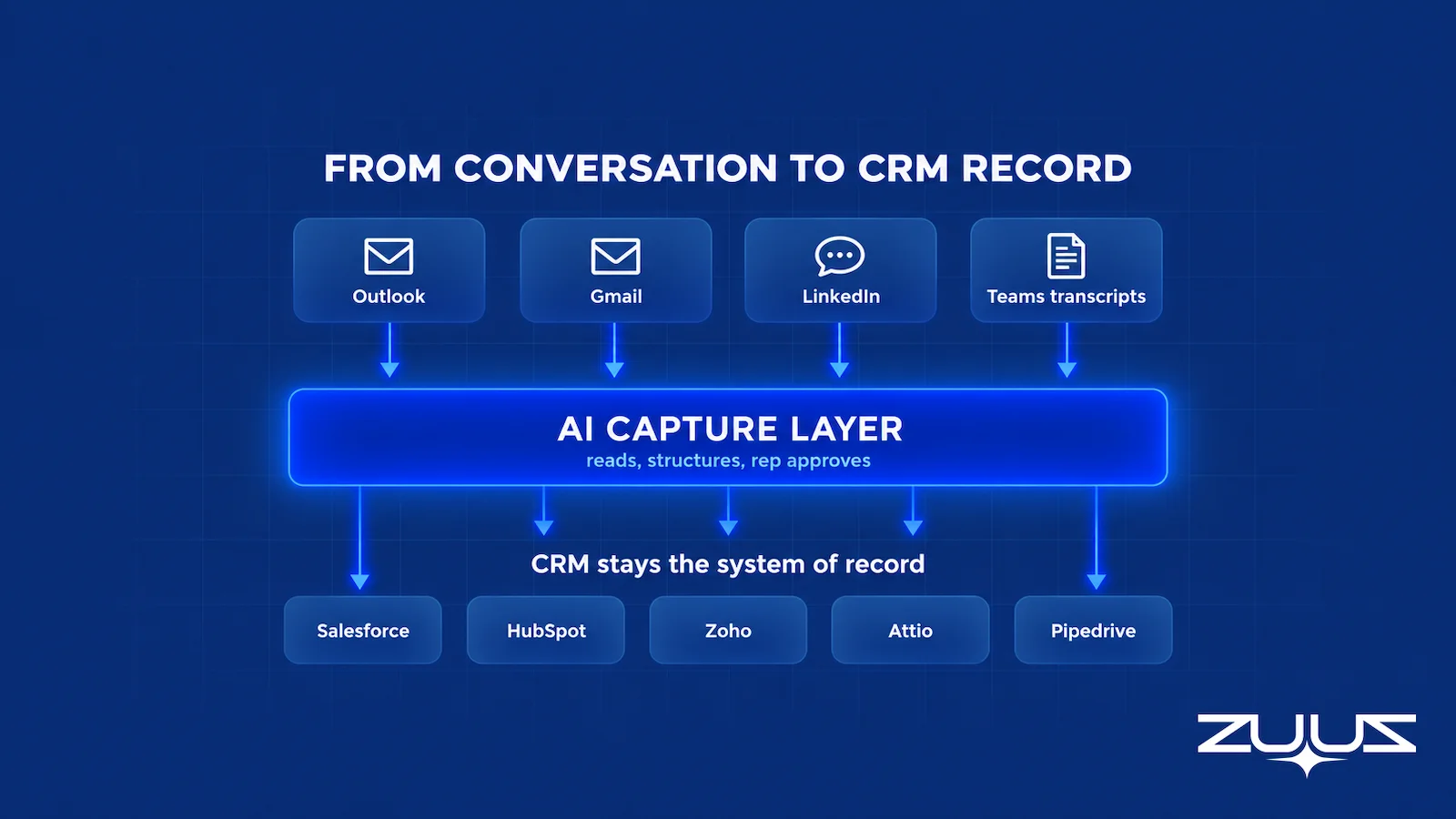
- A capture layer reads email, LinkedIn messages and meeting transcripts and writes structured records to the CRM, alongside whichever sync option a team picks.
- ZUUZ is a revenue intelligence layer on top of Salesforce, HubSpot, Zoho, Attio or Pipedrive, not a CRM. Reps keep working the way they do today, and ZUUZ updates the CRM automatically, with one-click rollback.
Picture a Salesforce admin at a sixty-seat sales team opening the Outlook Configurations page and finding forty users still assigned to Salesforce for Outlook. Most of them installed the add-in years ago, sync contacts and meetings without thinking about it, and have never heard that it is going away. A few senior reps run their follow-ups from Outlook tasks, and one sales director still logs every important email through its side panel. That admin now owns a Salesforce for Outlook replacement project with a fixed end date.
Salesforce has set that date for December 2027, and the threads on r/salesforce asking what everyone is replacing the add-in with show how many teams are still deciding. Most comparison pages answer with a vendor list. This guide covers what the retirement removes, the four realistic replacement paths and what each one captures and misses, what to do when the Outlook integration is not working, and a migration checklist to finish well before the deadline.
Salesforce for Outlook Retirement and What Actually Changes
Salesforce for Outlook, often shortened to SFO, is the legacy Windows add-in that syncs Outlook with Salesforce and adds a Salesforce side panel inside Outlook. Salesforce’s release note is direct: full product retirement for Salesforce for Outlook is scheduled for December 2027. The retirement was originally scheduled for June 2024 and then pushed back, which is why older articles and forum answers still quote the earlier deadline.
When it retires, Salesforce says SFO no longer syncs contacts, events or tasks, and admins and users lose access to its features, including the side panel. Records already saved in Salesforce stay where they are. What ends is the ongoing sync and the in-Outlook workflow reps built around it over the years.
Is Salesforce for Outlook being discontinued?
Yes. It has carried a “Retiring” label in Salesforce’s documentation for years, and its getting-started guide now opens with the December 2027 notice. Salesforce stopped developing it long ago and points every deployment toward what it calls the next-generation products: the Outlook integration and Einstein Activity Capture.
Salesforce for Outlook is not the Salesforce Outlook integration
The names cause real confusion in migration planning. The Salesforce Outlook integration is a different, current product: a Microsoft add-in that runs in Outlook desktop, Outlook on the web and Outlook for Mac, and it is not being retired. When a rep asks whether there is still a Salesforce plugin for Outlook, the answer is yes. It is just not the one many of them installed years ago.
The Capture Layer Test: what to require of any replacement
- It captures email, calendar, meetings and messages without a rep logging anything.
- It writes to the CRM record, not only to a separate activity store with its own retention limit.
- It records what changed in the conversation, not just that the conversation happened.
- It survives the Exchange Web Services retirement and works for shared mailboxes.
The paths below are compared against exactly those four requirements. ZUUZ covers the capture side on top of the CRM already in place, and the free trial makes the comparison concrete on real threads.
What Salesforce for Outlook Did That a Replacement Has to Cover
A replacement plan starts with an honest inventory of what SFO does today, because users rarely know which parts they depend on. Salesforce’s own guide describes the core job: SFO syncs contacts, events and tasks between Outlook and Salesforce, usually in both directions, and lets reps add Outlook emails, attachments, events and tasks to Salesforce records. It runs on a schedule, with events and tasks syncing every ten minutes and contacts every hour while the user is active.
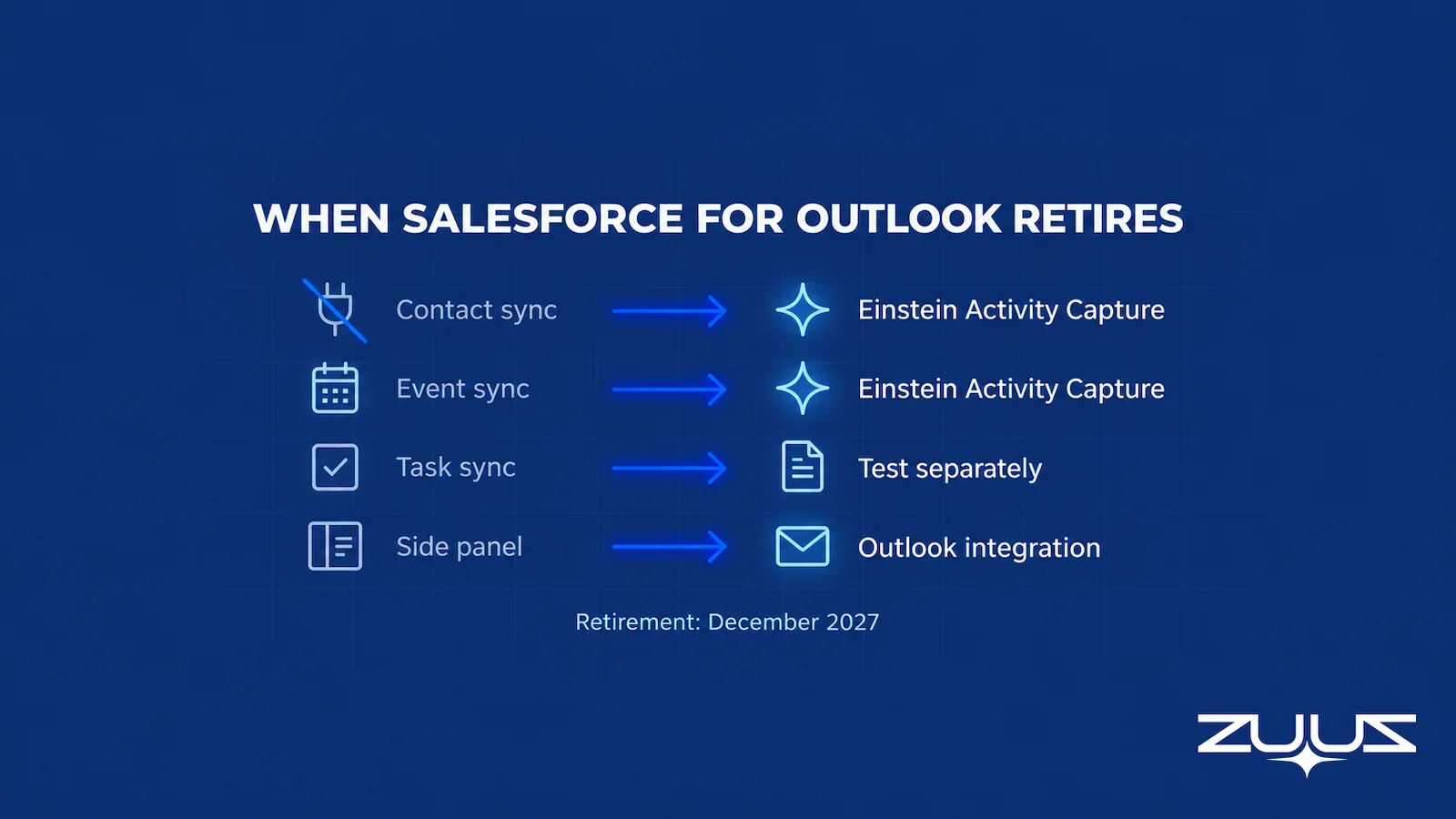
Each of those jobs needs a named home after the cutover. Salesforce maps them in its migration guidance: the side panel moves to the Outlook integration, email, calendar and contact sync move to Einstein Activity Capture, and email productivity features move to Salesforce Inbox. Tasks are the row most teams forget to test.
| SFO job | What retirement removes | Where it moves | What to test before cutover |
|---|---|---|---|
| Contact sync | Scheduled two-way contact sync | Einstein Activity Capture | Sync direction, which contacts qualify, duplicate handling |
| Event sync | Scheduled two-way calendar sync | Einstein Activity Capture | Recurring meetings, cancellations, private events |
| Task sync | Outlook tasks syncing with Salesforce tasks | Confirm in Salesforce’s migration guide for the org’s setup | Whether reps still manage follow-ups in Outlook tasks at all |
| Side panel | Record view and logging inside Outlook | Outlook integration | Add-in deployment, page layouts, permissions |
| Email and attachment logging | Adding emails and attachments to records | Outlook integration (manual) or Einstein Activity Capture (automatic) | Where logged email is stored and whether reports can use it |
The task row matters because SFO treated Outlook tasks as first-class records, and some long-tenured reps still run their whole follow-up routine from the Outlook task list. The next-generation products are built around email and calendar, so a team that depends on task sync should decide early whether to change the habit, keep tasks in Salesforce only, or add a tool that syncs tasks. Leaving it to cutover week produces a flood of tickets from the reps who close the most business.
How to evaluate a Salesforce for Outlook replacement
- Coverage of the channels the deal moves through. Email and calendar are the minimum. Ask whether LinkedIn messages and meeting or call transcripts are covered, because a replacement that only reads the mailbox leaves the same gap in a different tool.
- Where what it captures lands. A CRM field a report can read, or an activity timeline a human has to open? This single question separates the four paths below more than price does.
- What the rep has to remember. A BCC address, a sidebar, a button or a sync is a habit, and habits decay in the third busy week of a quarter.
- Shared mailboxes and delegated calendars. In IT services and reseller teams much of the deal arrives on sales@ or orders@; confirm these are supported before the license count is agreed.
- Correction path. Can the rep fix a wrong record in one click, and do manual entries take precedence over anything the tool proposes?
- Total cost of the change. Licenses plus retraining plus the adoption dip at cutover, not the license line alone.
Four Salesforce for Outlook Replacement Paths
Most teams end up choosing from four paths, and they are not mutually exclusive. The first three are sync and productivity tools: they move messages, contacts and meetings between the mailbox and Salesforce. The fourth is a different kind of product that reads what the conversations say and turns it into structured CRM updates.
| Option | What it does | What reps still do by hand | What it misses |
|---|---|---|---|
| Outlook integration alone | Salesforce side panel in Outlook; view, create and relate records | Log each email and event they want in Salesforce | Anything a rep does not log |
| Outlook integration plus Einstein Activity Capture | Automatic email and event capture; contact and event sync | Keep exclusions and record matching clean | Opportunity fields, stages and next steps |
| Salesforce Inbox | Email tracking, send later and availability sharing on top of the integration | Everything the base integration requires | The same capture gaps, plus a per-user license |
| Third-party sync tool | Server-side sync of email, calendar, contacts and often tasks, with admin policy controls | Varies by vendor and configuration | What the buyer said; it syncs records, it does not interpret them |
| Capture layer (such as ZUUZ) | Reads email, LinkedIn messages and Teams meeting transcripts and writes contacts, opportunities and next steps to the CRM | Nothing to log; any update can be rolled back in one click | Contact and calendar sync, which stays with the sync option |
The last column is the one to read twice. Every sync option answers the question “is the email in Salesforce?” None of them answers “did this email change the deal?”, and pipeline reviews run on the second question. The post on Salesforce email integration for IT sales teams covers the day-to-day logging setup; the rest of this guide stays on the replacement decision itself.
Replacing the Add-In Is the Easy Part. Keeping Pipeline Current Is Not.
ZUUZ reads Outlook email, LinkedIn messages and Teams meeting transcripts and writes the updates to Salesforce automatically, with full change history and one-click rollback.
How to Set Up the Salesforce Outlook Integration
The Salesforce Outlook integration is the supported successor to the retired desktop add-in, and it is switched on inside Salesforce rather than installed on each machine. Salesforce documents the full flow in its Outlook integration setup guide; the shape of it is the same for most orgs:
- Enable the Outlook integration in Salesforce Setup, which exposes the Salesforce pane inside Outlook for assigned users.
- Deploy the add-in to users through Microsoft 365 centralised deployment, so reps do not install anything themselves.
- Decide whether Einstein Activity Capture runs alongside it, because the pane shows records while capture is what actually logs email and events.
- Configure the email application pane layout so reps see the fields that matter on the record, not a default list.
- Confirm it works on a real thread: open a message from a known contact, check the record appears, and log one email to verify permissions.
Two practical constraints decide how smooth this is. The integration requires a supported Outlook and Microsoft 365 combination, and Salesforce compares its email and calendar options on its email and calendar integration products overview, and shared or delegated mailboxes behave differently from a rep’s own mailbox. Teams running a shared sales@ inbox usually discover this during rollout rather than before it.
Setting the integration up is a one-day task. Deciding what happens to the information after it is logged is the longer question, and it is the one the rest of this guide covers.
The Salesforce Outlook Integration Plus Einstein Activity Capture
This is the path Salesforce recommends and the one most admins will start with. The Outlook integration puts a Salesforce side panel inside Outlook, where reps can see the contacts, accounts and opportunities related to an email or meeting, create records, and log the message. Salesforce’s implementation guide lists Exchange Online with Office 365 and supported on-premises Exchange versions among its requirements, and the add-in can be deployed centrally by an admin or installed by users.
Manual logging versus automatic capture
On its own, the integration is manual: a rep chooses which emails and events to log. Salesforce’s guide says that to log emails to related records automatically, admins set up Einstein Activity Capture, and users configured for it see sharing options instead of manual logging options in the panel. That combination is the closest native equivalent to what SFO users are used to. The difference is that capture runs from the server rather than from a desktop sync that slows down when the laptop goes idle.
Where captured email lives and what that means for reports
Einstein Activity Capture has its own storage and reporting behavior, and the Sync Email as Salesforce Activity option changed parts of it. The detailed breakdown sits in the post on Einstein Activity Capture limits, pricing and alternatives, so it is not repeated here. For a Salesforce for Outlook replacement, the practical rule is simple: build the reports and Flows the sales team actually uses in a sandbox, and confirm that captured email feeds them before committing.
Shared mailboxes and delegated calendars
Salesforce’s documentation notes that Outlook shared mailboxes are not supported in Microsoft add-ins, with limited shared-folder support under specific Exchange Online requirements and none in Outlook on Mac. Teams that run sales or renewals from a shared inbox should test that workflow first, because it is often where SFO users built quiet workarounds. Delegated calendars used by executive assistants deserve the same early test.
Salesforce Inbox and When the License Earns Its Place
Salesforce Inbox is less a separate plugin than a license that unlocks more inside the same Outlook and Gmail integrations. Salesforce’s license documentation says that if the integration is extended with Salesforce Inbox, users require an Inbox license, and a single license covers one user across multiple email accounts. Some Salesforce bundles already include Inbox features, so it is worth checking existing entitlements before buying more licenses.
What Inbox adds is rep productivity: email open tracking, scheduling messages to send later, inserting calendar availability and shared text shortcuts, all without leaving the inbox. Those features help high-volume sellers. They are not a migration requirement, because none of them replaces something SFO provided.
An Inbox rollout is not a finished migration
It is easy to buy Inbox, roll it out with some fanfare and assume the SFO problem is solved. It is not, because Inbox sits on the same base integration and inherits the same capture model. Contact, event and task requirements still need their own sign-off, and email opens are a weak proxy for buyer intent in any case.
Third-Party Salesforce Outlook Plugin and Sync Tools
A category of third-party tools exists specifically for the gaps in the native options. Most sync email, calendar and contacts between Microsoft 365 or Google Workspace and Salesforce from the server side, and several also sync tasks, which makes them the natural shortlist for teams whose reps still live in the Outlook task list. They typically add admin controls over what gets captured, where it is stored and who can see it.
The evaluation should be specific, because “two-way sync” means different things from vendor to vendor. Test each object separately: emails, attachments, contacts, events, tasks and any custom objects. Then test the difficult cases, such as a recurring meeting edited in one system, a contact updated in both, a delegated calendar and a rep who leaves the company. The principles of bidirectional CRM sync apply here as anywhere: one owner per field, a clear direction and a plan for conflicts.
What sync tools still leave undone
A better sync tool gets more messages and meetings into Salesforce more reliably, and it still stores them as activity. The email where a buyer moves the go-live to the third quarter lands on the timeline, but the opportunity’s close date, stage and next step stay unchanged until a rep updates them. That is the same gap behind most missed sales leads in email, and no amount of sync closes it.
Sync Puts the Email on the Timeline. ZUUZ Puts the Change on the Deal.
ZUUZ turns what buyers say into proposed opportunity, contact and next-step updates in Salesforce, so the pipeline matches the conversation.
A Capture Layer for What Sync Never Structures
The fourth path solves a different problem. A capture layer reads the content of sales conversations and writes structured records to the CRM: a new contact on the right account, an opportunity with the need and timing attached, a next step with a date. It does not replace contact or calendar sync, and it is not meant to.
Picture a rep who receives this from a customer’s IT director: “We need another 40 licenses before the October renewal, and procurement wants pricing by the 15th.” With the Outlook integration and Einstein Activity Capture, the email lands on the contact’s activity timeline. With a capture layer, the same email becomes an expansion opportunity on the account, with the quantity, the renewal timing and a dated next step, written automatically, with a full change history and one-click rollback.
The channels matter too. SFO only ever saw Outlook, while a lot of commercial signal now arrives in LinkedIn messages and in meetings, which no Outlook sync tool reads. Teams that log LinkedIn messages in the CRM by hand know how much of a relationship lives there, and how rarely it gets typed in.
What to check in any capture layer
The questions differ from a sync evaluation. Ask which sources it reads and whether access is read-only, how it matches a message to the right account when several opportunities are open, and whether every change is logged with a one-click way to roll it back. Check that it respects the CRM’s field mappings and validation rules, and that every update it makes appears in an audit log.
The cost of skipping this layer is measurable in rep time. Salesforce’s State of Sales research (7th edition, 2026) found that sales professionals spend only 40% of their time selling, with manual data entry alone taking 13% of the week. A replacement project that swaps one logging tool for another leaves that 13% exactly where it was, which is why email-to-CRM automation belongs in the same conversation as the add-in.

Gmail Salesforce Integration for Google Workspace Teams
Salesforce for Outlook was always Outlook-only, so Google Workspace teams are not directly affected by the retirement. They face the same decision anyway, often inside mixed organizations where one division runs Outlook and another runs Gmail after an acquisition. Salesforce’s Gmail integration is the counterpart to the Outlook integration, with the same side panel model, and Einstein Activity Capture connects to Google Workspace for automatic email and calendar capture.
The same distinction holds on Google. The Gmail Salesforce integration gives reps Salesforce records inside Gmail and a way to log emails, and Einstein Activity Capture adds automatic capture and sync. Neither updates opportunity fields from what the buyer wrote. For mixed Microsoft and Google organizations, the useful move is one CRM data policy covering record ownership, exclusions and matching rules, with a different client setup for each mail platform.
ZUUZ connects to both Outlook and Gmail, mail and calendar, so a mixed organization gets the same capture behavior on both platforms. The Salesforce side looks identical either way, which keeps reporting consistent across divisions.
Outlook Salesforce Integration Not Working? Find the Failing Layer
Most tickets titled some version of “Outlook Salesforce integration not working” fall into one of three layers: the add-in itself, the capture or sync connection behind it, and the Salesforce configuration it depends on. Working out which layer failed saves a lot of reinstalling. The table covers the symptoms that dominate Salesforce support threads.
| Symptom | Likely layer | First check |
|---|---|---|
| SFO side panel fails to load | Legacy add-in | Whether the add-in is active rather than disabled in Outlook, and Outlook’s compatibility setting. It also flags a user still on the retiring add-in. |
| Salesforce add-in missing from Outlook | Add-in deployment | Whether the add-in is deployed centrally or installed per user, and whether the user’s Outlook client and Exchange version are supported |
| Side panel slow to open for some users | Capture configuration | Salesforce has documented slower panel loads for users assigned to Einstein Activity Capture; compare an EAC user with a non-EAC user |
| Panel works but emails are not logging | Capture connection | The user’s Einstein Activity Capture configuration, exclusion rules and whether the mailbox connection is still authorized |
| Emails logged but missing from reports | Salesforce configuration | Where captured email is stored and whether the report type can see it |
| Blank panel or login loop | Authentication | My Domain and single sign-on settings; Salesforce notes the integration does not support custom login flows |
The first row deserves a note. When a user’s Salesforce for Outlook side panel will not load, fixing it buys time until December 2027 at best, and the hour is better spent moving that user to the replacement. The Outlook Configurations list shows who is still assigned to SFO, which makes it a practical triage queue for the migration.
Moving Off Salesforce for Outlook? Add Capture While the Plan Is Open.
ZUUZ runs on top of Salesforce next to the Outlook integration, so reps keep working in Outlook and the CRM stays current.
Salesforce for Outlook Replacement Checklist Before December 2027
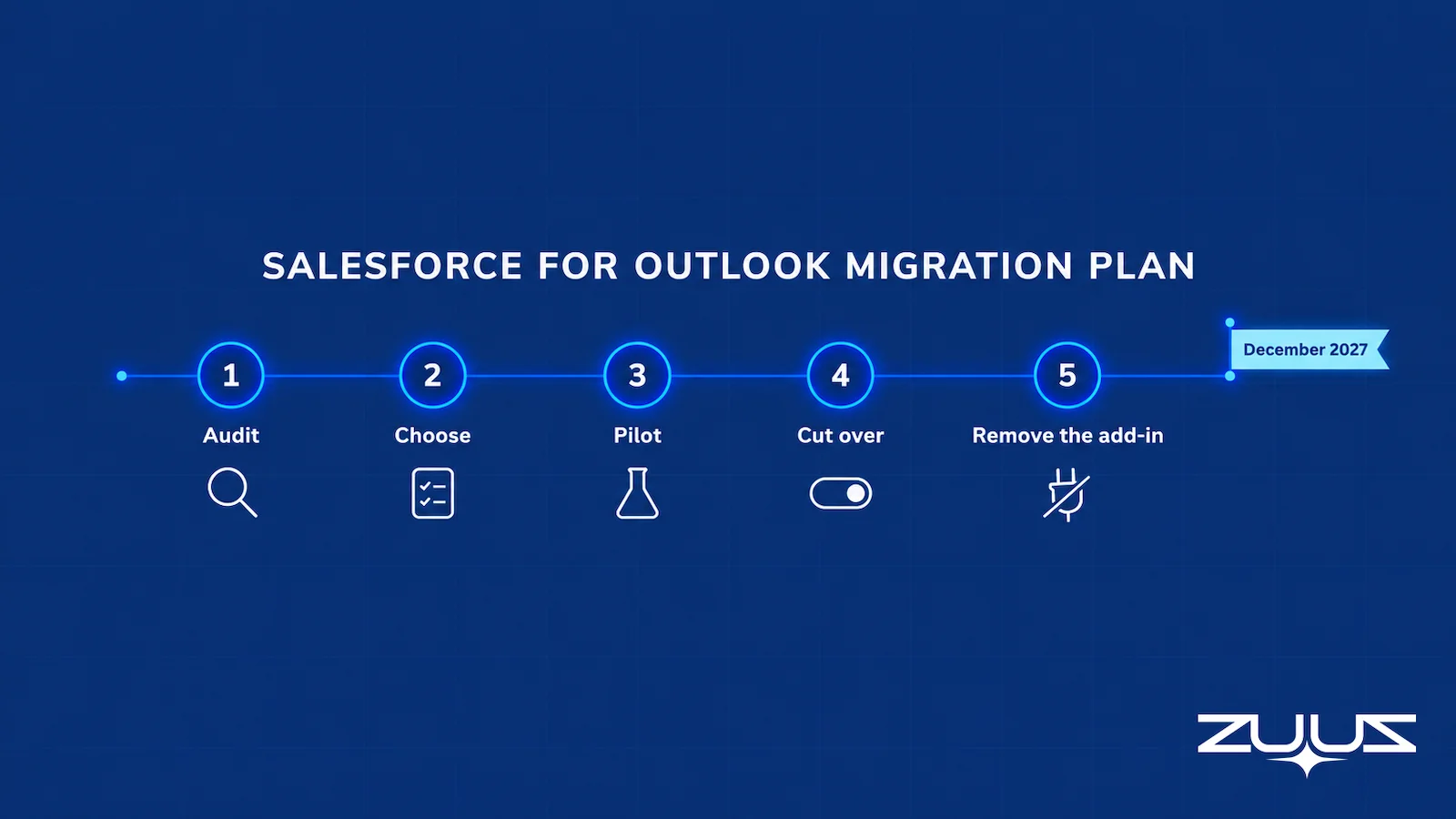
A migration with a fixed deadline goes best when it runs as a project with named owners, not as an email asking users to install a new add-in. Salesforce’s guide to preparing for the retirement lays out the stages: understand the change, verify the requirements, itemize the features to roll out, plan the rollout and test it. The checklist below turns that into work an admin can assign.
| Phase | What to do | Done when |
|---|---|---|
| Audit | List every user assigned to SFO in Outlook Configurations; record which of contact, event and task sync each one uses, and in which direction | Every SFO user has a named replacement workflow |
| Requirements | Confirm Exchange and Outlook client versions, add-in deployment policy, single sign-on and shared mailbox needs | No user is blocked by a client or mailbox the add-in does not support |
| Choose | Pick the combination: integration plus Einstein Activity Capture, Inbox for which users, a sync tool if tasks matter, a capture layer for pipeline updates | Each SFO job in the inventory maps to exactly one tool |
| Pilot | Run five to ten representative users, including the heaviest SFO users and an assistant with a delegated calendar | The reports, Flows and dashboards the team uses work on captured data |
| Cut over | Deploy the add-in, switch capture on, remove SFO, and make sure two tools are never writing the same objects | No new duplicate contacts or events after a full week |
| Stabilize | Monitor sync errors, review exclusion rules and retire the SFO configurations | SFO is uninstalled everywhere, with months to spare |
Set an internal deadline well ahead of December 2027. A retirement date that has moved once can feel soft, but the risk is lopsided: finishing early costs nothing, while finishing late means a Monday morning when a sales team’s contacts and meetings stop syncing with no fallback. Leave room for the long tail of users on leave, on old laptops, or quietly dependent on a workflow nobody documented.
Two decisions go wrong more often than the rest. The first is running SFO and a new sync tool side by side on the same objects, which produces duplicate contacts and double-booked events within days. The second is treating the switch as an IT change rather than a CRM user adoption change: every new panel, button and logging step is one more thing a busy rep can skip, so the fewer new habits the replacement demands, the better it holds.
A note from having run this migration in practice rather than on paper. The add-in swap is a project with a date, and it finishes. The habit it leaves behind does not: reps keep working in Outlook, and the CRM keeps depending on somebody choosing to log. Teams that treat the retirement purely as a tooling replacement rebuild the same gap on newer software, usually within a quarter, and then conclude that the new tool is worse than the old one.
The migration window is the cheapest moment to fix that, because the team is already being asked to change something. Adding capture at the same time costs one conversation instead of two.
What this looks like in a real deployment
At RA Technologies, a US IT services company, ZUUZ ran on the HubSpot instance the team had used for two years, with the same people and no migration. It surfaced $120K in pipeline within 72 hours that the CRM had never seen, captured from the sales mailbox.
At Cloud Box Technologies, a UAE cloud and IT services business, 10 to 12 renewals are tracked in minutes from a single connected user, and leadership sees live pipeline without asking anyone for an update. RA Technologies stayed on HubSpot and Cloud Box stayed on its existing CRM, so in both cases capture was added without a migration project.
Salesforce for Outlook Replacement: How ZUUZ Adds the Capture Layer
ZUUZ is a revenue intelligence layer that sits on top of the CRM. It is not a CRM, and it does not replace the Outlook integration or Einstein Activity Capture. It reads Outlook and Gmail email, LinkedIn messages and Microsoft Teams meeting transcripts, read-only, identifies the commercial signal in them, and writes structured records to Salesforce: new contacts on the right account, opportunities with the need and timing attached, and dated next steps. Salesforce stays the system of record.
For a team replacing SFO, that changes what the migration can deliver. Nobody changes how they work: reps keep writing email in Outlook and taking meetings in Teams, and ZUUZ updates the CRM automatically, with full change history and one-click rollback, instead of another logging task. The same layer runs on HubSpot, Zoho, Attio and Pipedrive, which matters for groups that run more than one CRM across business units, and the post on HubSpot email lead capture shows the same capture on HubSpot.
The results show up as pipeline. RA Technologies, a US IT services company, had run HubSpot for two years; ZUUZ ran on the same instance with the same team and surfaced $120K in pipeline within 72 hours that the CRM had never seen, captured from the sales mailbox. Cloud Box Technologies, the UAE cloud and IT services company where Avinash Gujje scaled the business from $0 to $25M ARR, runs ZUUZ so that inbound email turns into leads and renewals, leadership sees live pipeline, and tracking 10 to 12 renewals takes minutes.
From an operator’s seat, the tool change is rarely what breaks a pipeline. The gap between what reps hear and what the CRM records does. An SFO migration is one of the few moments when a sales organization re-examines that gap against a deadline, which makes it a practical time to close it instead of rebuilding the same manual logging habit on a new add-in. The boundaries are plain: ZUUZ does not send email or LinkedIn messages, and it does not sync contacts, calendars or tasks, so a sync option still handles those jobs.
Which Salesforce Outlook Integration Setup Fits Which Team
A small team that logs a handful of important emails a week, with no dependency on Outlook tasks, can often run the Outlook integration alone and keep logging manual. That is a legitimate choice, and it costs nothing extra. The risk is only that the CRM holds exactly what reps remembered to log.
Most teams with a real SFO footprint should plan on the Outlook integration plus Einstein Activity Capture, test reporting in a sandbox, and add Inbox only for the sellers who will use its features. Teams whose reps run their day from the Outlook task list, or who need tighter admin control over what is captured, should shortlist third-party sync tools and test task sync specifically.
Teams whose pipeline reviews keep surfacing deals nobody logged, or whose account managers carry expansion and renewal conversations in email and LinkedIn, should add a capture layer on top of whichever sync option they pick. The weekly sales pipeline review is usually where that gap shows first, and the revenue leakage that follows is quiet enough to go unnoticed for a long time.
Frequently Asked Questions
Is Salesforce for Outlook being discontinued?
Salesforce for Outlook is being retired. Salesforce has scheduled full product retirement for December 2027, rescheduled from an earlier June 2024 date. After retirement it no longer syncs contacts, events or tasks, and users lose its features, including the side panel. Salesforce recommends moving to the Outlook integration and Einstein Activity Capture, which it calls the next-generation products.
When is Salesforce for Outlook retiring?
Full product retirement for Salesforce for Outlook is scheduled for December 2027. Older articles cite June 2024 because that was the original date before Salesforce rescheduled it. Admins should set an internal cutover date months ahead of the deadline to leave time for testing, users who are away, and any third-party sync tool rollout.
What is the best Salesforce for Outlook replacement?
For most teams the best Salesforce for Outlook replacement is the Outlook integration plus Einstein Activity Capture, which Salesforce names as the next-generation products. Teams that need task sync or tighter capture controls add a third-party sync tool. Teams that need opportunity fields updated from what buyers say add a capture layer such as ZUUZ on top.
Is there a Salesforce plugin for Outlook?
Yes. The Salesforce Outlook integration is a current Microsoft add-in that shows Salesforce records in a side panel in Outlook desktop, Outlook on the web and Outlook for Mac. It is separate from the legacy Salesforce for Outlook add-in, which retires in December 2027. Admins can deploy it centrally or let users install it themselves.
Does the Salesforce Outlook integration log emails automatically?
Not on its own. The Outlook integration lets reps view records and log emails and events manually. Automatic email logging needs Einstein Activity Capture, and Salesforce notes that users configured to capture emails see sharing options instead of manual logging options. Contact and event sync also run through Einstein Activity Capture rather than through the add-in itself.
What happens to existing data when Salesforce for Outlook retires?
Records already saved in Salesforce, including contacts, events, tasks and emails logged through Salesforce for Outlook, remain in Salesforce. What stops is the ongoing sync between Outlook and Salesforce and access to features such as the side panel. Admins should document their Outlook configuration settings before removing the add-in so the replacement can mirror them.
What is the difference between Salesforce Inbox and the Outlook integration?
The Outlook integration is the base add-in that shows Salesforce records inside Outlook and lets reps log emails. Salesforce Inbox is a license that unlocks extra features in the same integration, such as email tracking, send later and availability sharing. Each user needs one Inbox license, which covers that user across multiple email accounts.
Why is my Outlook Salesforce integration not working?
Most Outlook Salesforce integration problems sit in one of three layers: the add-in, the capture connection or the Salesforce configuration. A missing panel usually points to add-in deployment or an unsupported client, missing emails to Einstein Activity Capture settings, and blank or looping panels to single sign-on. Users still on Salesforce for Outlook should be migrated rather than repaired.
Does the Salesforce Outlook integration work with shared mailboxes?
Shared mailboxes are a known limit. Salesforce’s documentation says Outlook shared mailboxes are not supported in Microsoft add-ins, with limited shared-folder support under specific Exchange Online requirements and none in Outlook on Mac. Teams that sell or manage renewals from a shared inbox should test that workflow early in the migration, before choosing a tool.
Can Google Workspace teams use a Gmail Salesforce integration instead?
Yes. Salesforce offers a Gmail integration with the same side panel model as the Outlook integration, and Einstein Activity Capture connects to Google Workspace for automatic email and calendar capture. Salesforce for Outlook never supported Gmail, so Google Workspace teams are unaffected by the retirement, but they face the same gap between logged email and updated deals.
Which CRM is best to integrate with Outlook?
The best CRM to integrate with Outlook is usually the one the team already runs, since Salesforce, HubSpot, Zoho, Attio and Pipedrive all offer Outlook connections. A plugin retirement is rarely a good reason to switch CRMs. The bigger question is whether conversations become structured records, which a capture layer can solve on top of any of them. Teams not yet on a CRM can start with how to use Outlook as a CRM.
Does ZUUZ replace Salesforce for Outlook?
ZUUZ does not replace the Outlook add-in or contact and calendar sync. It is a revenue intelligence layer on top of Salesforce, not a CRM, that reads Outlook and Gmail email, LinkedIn messages and Teams meeting transcripts and writes structured records such as opportunities, contacts and next steps automatically, with every change logged and reversible in one click. Teams pair it with the Outlook integration.
How do you set up the Salesforce Outlook integration?
Enable the Outlook integration in Salesforce Setup, deploy the add-in to users through Microsoft 365 centralised deployment, decide whether Einstein Activity Capture runs alongside it, configure the email application pane layout, then test on a real thread from a known contact. Shared and delegated mailboxes behave differently from a rep’s own mailbox, so test those separately.
Is the Salesforce Outlook integration free?
The Outlook integration itself is included with supported Salesforce editions, so there is no separate charge to switch it on. Costs appear next to it: Salesforce Inbox features are licensed separately, and Einstein Activity Capture has tiered retention where the standard tier keeps activity data for six months. Budget for the capture and retention layer, not the pane.