How to Log Meeting Notes in Salesforce and HubSpot
How to log meeting notes in Salesforce with Log a Call, Events, Notes and Einstein Activity Capture, which fields to capture, and how to automate it.

CEO of ZUUZ. He scaled Cloud Box Technologies from 0 to $25M ARR in IT services and distribution before building ZUUZ. Connect on LinkedIn
TL;DR: How to log meeting notes in Salesforce comes down to four native tools: Log a Call for a finished conversation, an Event for a meeting, Notes for longer write-ups, and Einstein Activity Capture for calendar sync. Each one stores what a rep types, when the rep gets around to typing it. The notes that change a deal are the ones that land as fields, such as next step, stakeholders and stage, and that is the part worth automating.
- Log a Call creates a completed task on the record, an Event records a scheduled meeting with its attendees, and Notes hold longer rich-text write-ups linked to one or more records.
- Salesforce has no single meeting notes object. Notes live in a Task's comments, an Event's description, or a separate note in the Notes related list.
- Einstein Activity Capture syncs calendar events and email from connected mailboxes. It records that a meeting happened, not what was agreed in it.
- Meeting notes fail because they are typed after the fact, compressed into a summary, skipped in a busy week, or logged to the wrong record.
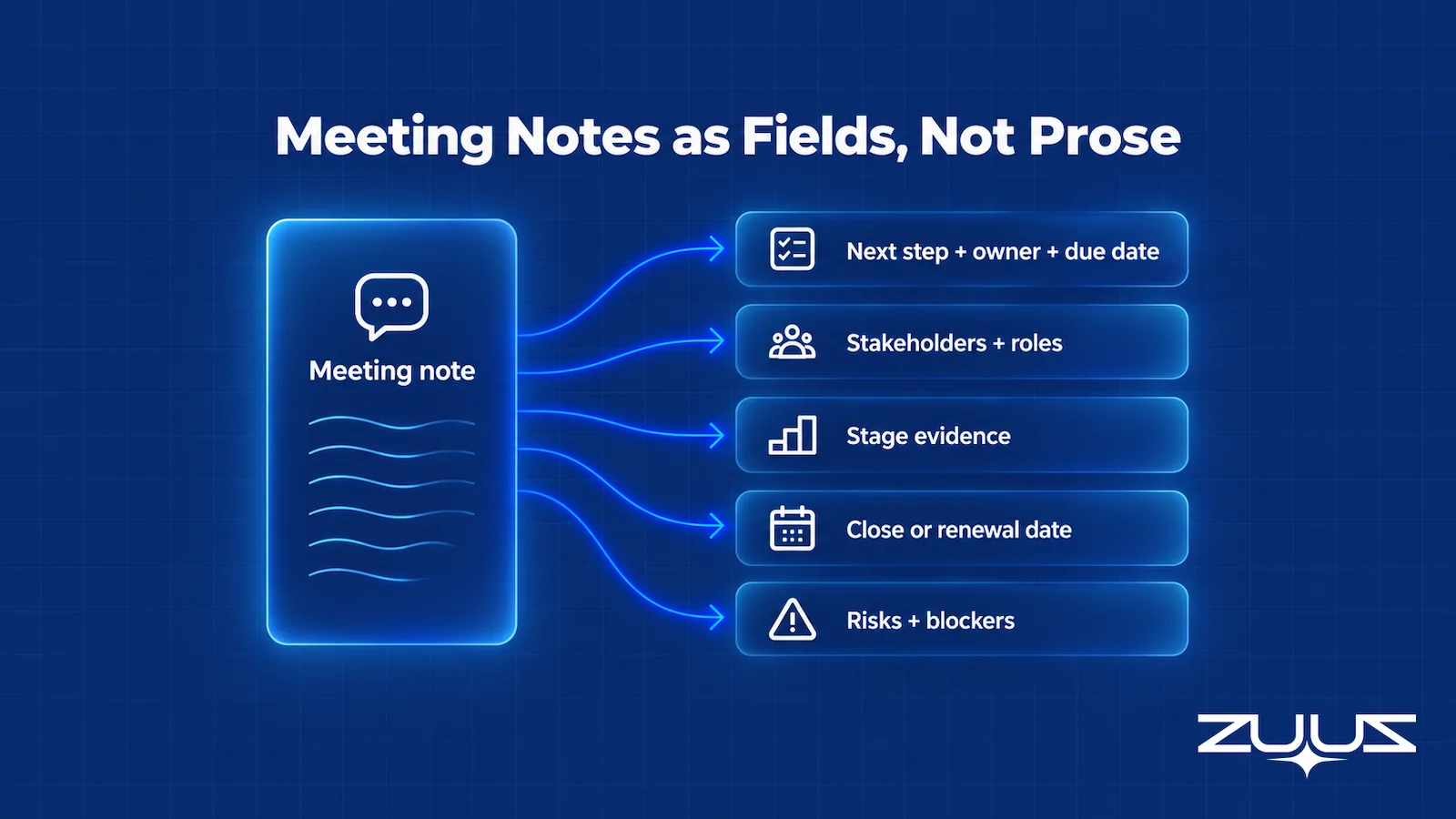
- A useful meeting note is a set of fields: next step with owner and date, stakeholders and roles, stage evidence, timing changes and risks.
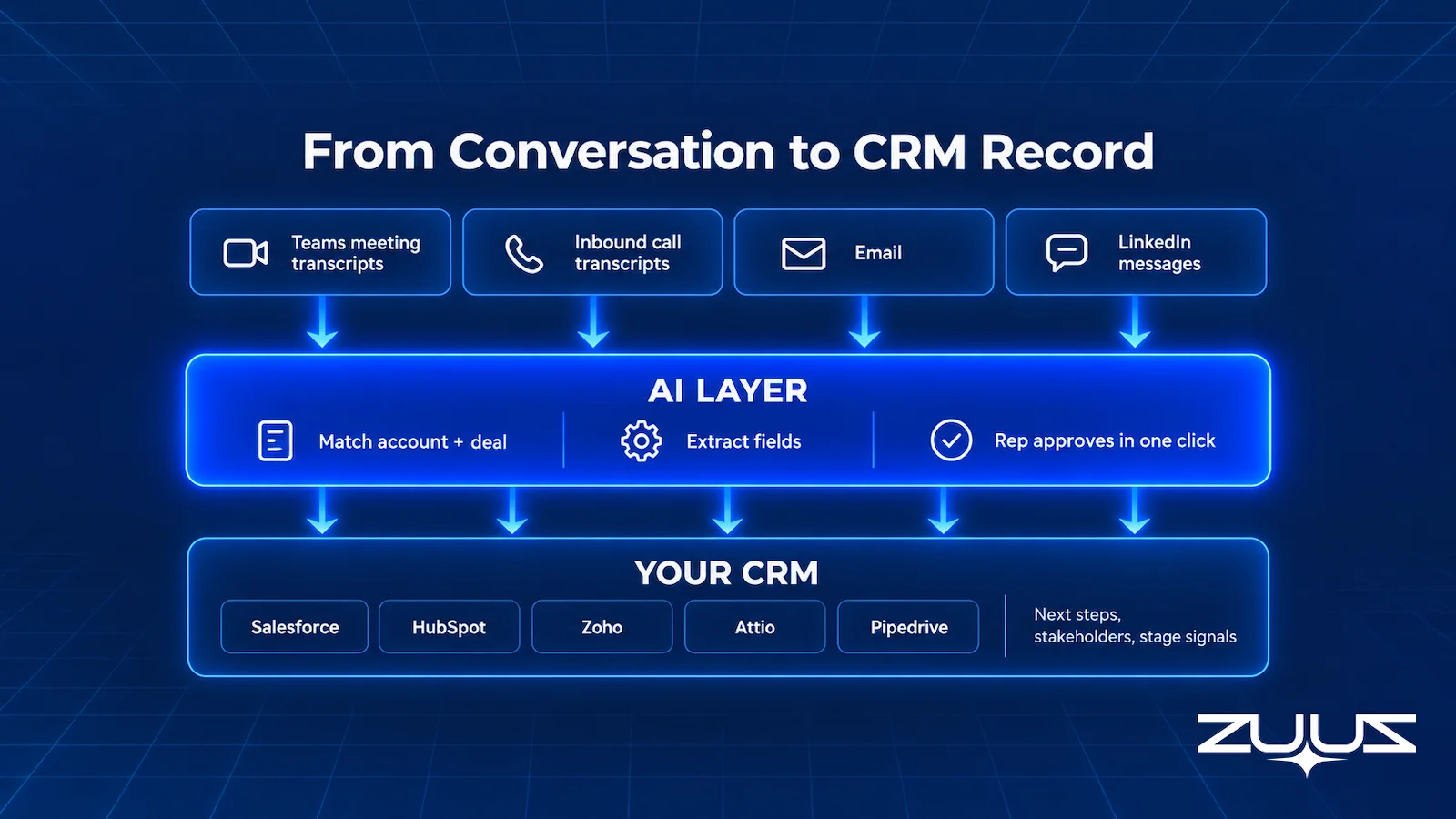
- ZUUZ, a revenue intelligence layer on top of the CRM, reads Microsoft Teams meeting transcripts and CallTrackingMetrics inbound call transcripts along with email and LinkedIn messages, and writes structured updates to Salesforce or HubSpot automatically, with full change history and one-click rollback.
- ZUUZ connects to the sales inbox, reads LinkedIn messages and meeting or call transcripts, and writes leads, stakeholders, next steps and renewal signals into the CRM automatically, with every change logged and reversible in one click. Salesforce or HubSpot stays the system of record.
Picture a rep walking out of a forty-minute discovery meeting with a regional distributor. The buyer named a second decision-maker, said the budget moves to next quarter, and asked for a security questionnaire by Friday. By the time the rep opens Salesforce that evening, the note reads "Good call, next steps agreed." The scene is an illustration, but most sales managers have read that exact note more than once.
This guide covers how to log meeting notes in Salesforce with each native tool, step by step: Log a Call, Events and Tasks, Notes, the activity timeline and Einstein Activity Capture. It then covers why notes still fail to reach the record, what a meeting note should capture as fields rather than prose, how to automatically log calls and meetings, and how the same job works in HubSpot.
How to Log Meeting Notes in Salesforce With Native Tools
Salesforce offers several places to put what happened in a meeting, and they are not interchangeable. Each one creates a different kind of record, shows up in a different place on the page, and feeds different reports. Picking the wrong one is how a manager opens an opportunity and finds three versions of the same meeting, or none at all.
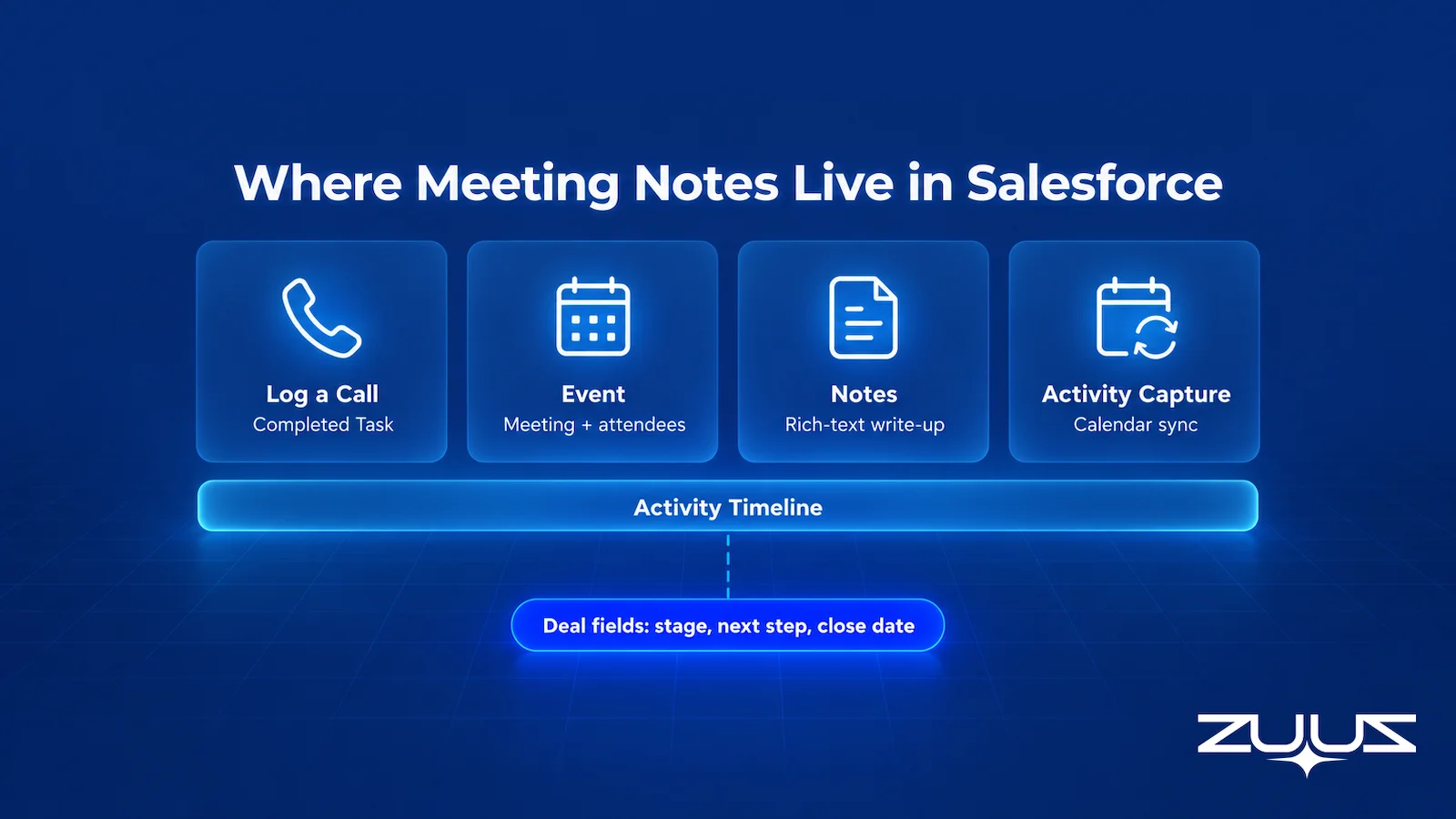
Four tools do most of the work. Log a Call records a conversation that already happened as a completed task, and an Event records a meeting with a start time, an end time and attendees. Notes hold longer write-ups that can be linked to several records, and Einstein Activity Capture syncs calendar events and email from connected mailboxes. The activity timeline is where most of this surfaces on the record.
| Method | What it captures | What it misses |
|---|---|---|
| Log a Call | A completed task with a subject, comments, the contact and the related record, plus an optional follow-up task | Anything the rep does not type, and any change to opportunity fields |
| Event | Date, time, attendees, the related record and a description field for notes | What was decided, unless the rep reopens the event and edits the description |
| Task | A to-do with an owner, a due date and a status, often the follow-up from a meeting | The meeting itself and the context behind the follow-up |
| Notes (Enhanced Notes) | Rich-text write-ups with lists and images, linked to one or more records and shareable | Structure; notes sit in the Notes related list, not in the fields reports use |
| Einstein Activity Capture | Calendar events and emails synced from connected mailboxes | What was said in the meeting, and any update to stage, close date or stakeholders |
| Activity timeline | A view of past and upcoming tasks, events, calls and emails on the record | Nothing of its own; it shows only what the other tools created |
| ZUUZ, a capture layer on top of the CRM | Next steps with owners and dates, stakeholders and roles, stage signals and timing changes, captured from Microsoft Teams meeting transcripts, inbound call transcripts, email and LinkedIn messages, and written to the record automatically, with one-click rollback | Meetings held on platforms whose transcripts it does not read yet, and anything never discussed in a connected channel |
The right column is the pattern to notice. Every native option stores either what a rep chose to write or the fact that a meeting occurred. None of them turns the conversation into the field changes a pipeline report depends on, and that gap is the subject of the second half of this guide.
What Is Log a Call in Salesforce?
Log a Call is a quick action that creates a completed task or activity record so a user can document a conversation, as Salesforce's Log a Call button help article describes it. In Lightning Experience it sits in the Activities component on most records, while on Cases and Work Orders it appears in the Chatter publisher. Because the task is saved as completed, it lands in the activity history rather than in the list of open to-dos.
The name suggests phone calls, but teams use it for any finished conversation: a call, a video meeting, a hallway conversation at a trade show. That flexibility is also why reporting on it gets messy. Unless the team sets a Type value or a task record type, a meeting logged through Log a Call looks the same in a report as a two-minute voicemail.
How to Log a Call in Salesforce Lightning, Step by Step
- Open the contact, account, lead or opportunity record the conversation belongs to.
- In the Activity component, choose Log a Call. Depending on the org's task record types, a record type choice may appear first.
- Enter a subject and write the notes in the Comments field.
- Check the Name field, which holds the contact or lead, and the Related To field, which usually holds the account or opportunity. These two fields decide where the activity appears.
- Optionally fill in the section below Schedule Follow-Up Task to create the next to-do, with an owner and a due date.
- Save. The call is stored as a completed activity on the record.
Salesforce's help article explains that the fields above Schedule Follow-Up Task hold the call details, and the fields below it create an optional follow-up task that can be assigned to another user. That second half is the most underused part of the form. A logged call with a dated follow-up task is a commitment the pipeline can track, and a logged call without one is a diary entry.
Log a Call vs Task in Salesforce
Both actions create Task records. The difference is status and timing: Log a Call saves a task that is already completed, while New Task creates an open item with a due date. The rule most admins settle on is Log a Call for what happened and New Task for what still has to happen.
When the Log a Call Button Is Missing
If Log a Call does not appear, an admin usually has to add it to the page layout. In Lightning Experience that means dragging the Log a Call action from the Mobile and Lightning Experience Actions palette into the Salesforce Mobile and Lightning Experience Actions section of each layout that needs it. The same action then shows in the Salesforce mobile app, which is how most reps log a call from a phone in the minutes after a meeting.
How to Log a Meeting in Salesforce With Events
Searches for "log meeting in Salesforce" usually mean one of two things: recording a meeting that is on the calendar, or writing up what happened in it. Events handle the first job. An Event has a start and end time, a location, attendees and a description field, and it sits in the upcoming section of the activity timeline until the meeting passes.
Create the Event and Link the Right Records
From the record, choose New Event, set the subject and time, and add the people who attended. The Name field holds a contact or lead and Related To holds the account or opportunity; with Shared Activities enabled, more than one contact can be related to the same event. Linking the opportunity matters more than any other field, because it is what places the meeting on the deal a manager reviews.
Write Notes Into the Event Description After the Meeting
The simplest way to record meeting notes on an Event is to reopen it after the meeting and add the notes to its description. This keeps the date, the attendees and the notes together on one record. It also depends entirely on the rep coming back to the event later, which is exactly the step that gets skipped.
Avoid Counting One Meeting Twice
A common mess in activity reports is the same meeting logged as an Event and again through Log a Call. Pick one convention and write it down: many teams keep the Event as the record of the meeting and use Log a Call only for conversations that were never scheduled. Follow-up work then goes into separate tasks with owners and dates, so the meeting record and the next steps do not blur together.
A Logged Meeting Is Not an Updated Deal.
ZUUZ reads Microsoft Teams meeting transcripts, inbound call transcripts, email and LinkedIn messages, and writes next steps, stakeholders and stage signals into Salesforce or HubSpot automatically, keeping a full change history with one-click rollback.
How to evaluate a meeting-notes fix
- Does the meeting end up as fields a report can read, meaning next step with an owner and a date, stakeholders, stage evidence, or only as prose on a timeline?
- Does it land on the right opportunity, not only on the contact who happened to be in the invite?
- Is there a capture layer reading the transcript the meeting already produced, so nobody retypes the conversation afterwards?
- Can the rep see each update next to the line it came from, and correct or roll it back in one click?
- Does it cover the channels around the meeting as well, email, LinkedIn messages and inbound calls, so one deal produces one record instead of three partial ones?
- Does it work inside the CRM the team already runs, without adding a new object or a new place to look?
How to Record Meeting Notes in Salesforce With Notes
For a longer write-up, such as a discovery meeting with several stakeholders or a quarterly business review, Salesforce's Notes feature fits better than a description field. Notes, often called Enhanced Notes to separate them from the older Classic notes, support rich text, lists and images. A note can be linked to several records at once and shared with colleagues, which helps when one meeting touches an account, an opportunity and a renewal.
Turn On Notes and Add the Notes Related List
Salesforce's Set Up Notes documentation has an admin enable the feature from Setup by entering Notes Settings in the Quick Find box, selecting Enable Notes and saving. The admin then adds the Notes related list to the page layout of each object where reps should take notes, and adds the New Note action to the publisher layouts. Orgs moving off Salesforce Classic can migrate older notes with Salesforce's Magic Mover tool.
Two settings are easy to miss. Notes can be added as a utility bar item, so reps can write without leaving the record they are on. And Allow Creation of Tasks from Notes, in Activity Settings, lets mobile users turn a line in a note into a task, which is one of the few native bridges from prose to a trackable follow-up.
Which Salesforce Meeting Notes Object Stores What
People searching for the Salesforce meeting notes object are often surprised that there is no single one. Meeting notes can end up in at least four places, and each behaves differently on the page and in search.
| Where the notes live | Object | Where it shows | Best for |
|---|---|---|---|
| Log a Call comments | Task, saved as completed | Activity timeline and activity history | A short record of a finished conversation |
| Event description | Event | Activity timeline | A scheduled meeting with its attendees |
| Enhanced note | ContentNote, linked to records | Notes related list | Long write-ups shared across several records |
| Classic note | Note | Notes and Attachments related list | Older orgs that have not migrated yet |
Whichever object holds the text, the fields that describe the deal sit somewhere else, on the opportunity and contact records. A note that says the close date moved does not move the close date. That separation is the root of most complaints about meeting notes in Salesforce.
Finding Meeting Notes on the Activity Timeline and in Einstein Activity Capture
The activity timeline is where reps and managers look for what happened on a record. Salesforce's activity timeline documentation lists it on accounts, contacts, leads, opportunities, cases, contracts and activity-enabled custom objects, among others, with filters and separate sort orders for upcoming and past activity. Logged calls, events, tasks and synced emails all appear there.
When Meeting Notes Do Not Show on the Timeline
Three causes cover most missing-activity complaints. A timeline filter hides a type or date range, the activity was related to a different record than the one being viewed, or the notes were written as an Enhanced note, which sits in the Notes related list rather than on the timeline. Checking the Related To field on the task or event usually settles it within a minute.
What Einstein Activity Capture Adds for Meetings
Einstein Activity Capture connects user mailboxes and calendars to Salesforce. Salesforce's Einstein Activity Capture data retention documentation says it can automatically capture email, meeting and contact data from connected mailboxes, and that synced emails and events become Salesforce records subject to the org's storage limits, while data held on the Activity Platform follows a retention period instead. For meetings, that means a calendar event can appear on the related records without anyone logging it.
What Einstein Activity Capture does not capture is the conversation. The synced event carries its subject, time, attendees and invite details, not the buyer's objection, the new stakeholder or the agreed next step. A deeper look at where EAC data lives and what it leaves undone is in the guide to Einstein Activity Capture limits and alternatives, and teams replacing the old Outlook add-in face the same question, covered in the Salesforce for Outlook replacement guide.

Why Meeting Notes Still Don't Reach the Record
Every method above shares one dependency: a person has to write the note, choose the right record, and do it while the details are fresh. In practice that breaks in four predictable ways. Anyone who has run a weekly pipeline review has seen all four in the same week.
Typed After the Fact
Reps rarely log a meeting during the meeting. They log it between meetings, at the end of the day or on Friday afternoon, from memory. By then the exact wording of an objection is gone, the procurement contact's name is half-remembered, and "the week of the 14th" has become "next month." Salesforce's State of Sales report (7th edition, 2026) found that manual data entry alone takes 13% of a sales professional's week, which is why the write-up slides to whenever time is left over.
Summarized Until the Signal Is Gone
A forty-minute meeting becomes three lines. Summaries keep the tone of a meeting and drop its facts: "positive call, they want a proposal" says nothing about who signs, what the budget is or which competitor is in the room. The note exists and the activity count goes up, but the deal record is no better informed than it was before the meeting.
Skipped Entirely
When a week gets busy, logging is the first task dropped, and the meetings most likely to be skipped are the short, informal ones: a quick Teams call with a champion, or an inbound call from a customer asking about renewal terms. Those are often the conversations where timing changes first. Low logging rates are usually treated as a CRM user adoption problem, but the underlying cost is time, not willingness.
Logged to the Wrong Record
Even a good note fails if it lands on the contact but not the opportunity, or on last year's closed deal instead of this year's renewal. It then never shows in the pipeline review, and CRM reports built on opportunity fields count the deal as untouched. Record matching is dull work, and it is where manual logging quietly loses the most value.
ZUUZ founder Avinash Gujje scaled Cloud Box Technologies from $0 to $25M ARR in IT services and distribution, and the working rule behind ZUUZ comes from running that kind of sales team: a meeting counts in the pipeline only when it changes a field someone reports on. Notes that stay as prose are useful context. They do not move a stage, a renewal list or a stalled-deal report.
Stop Rewriting Meetings From Memory.
ZUUZ reads Teams meeting transcripts and CallTrackingMetrics call transcripts, matches them to the right account and deal, and updates the CRM automatically, with full change history and one-click rollback.
What a Meeting Note Should Capture as Fields, Not Prose
The fix for most meeting-note problems is to decide in advance which facts must land in fields. A short standard beats a long template, because reps will fill in five fields after every meeting and will not write a structured essay. The prose note can still exist for context, but the fields are what reports, handoffs and pipeline reviews read.
| What the buyer said (illustration) | Fact captured | Where it belongs in Salesforce |
|---|---|---|
| "Our CFO signs anything over $50K." | New stakeholder and role | Contact record, plus a contact role on the opportunity |
| "Budget opens next quarter, not this one." | Timing change | Opportunity close date, with the reason noted in Next Step |
| "Send the security questionnaire by Friday." | Next step with owner and due date | Next Step field and an open task assigned to the rep |
| "We are also talking to our current vendor." | Competitive situation | A competitor field the team defines on the opportunity |
| "If legal approves, we can sign in two weeks." | Stage signal | Opportunity stage, if the team's exit criteria are met |
| "Our current contract renews in March." | Renewal date | Renewal or contract end date on the account or contract |
The quotes in the table are illustrations rather than a real customer's words, but each one is the kind of sentence that decides a deal and then disappears into a summary. Six sentences produce six field changes on three different records. A note that captures none of them as fields leaves the opportunity exactly as it was.
A Five-Field Minimum for Every Meeting
- Next step, with an owner and a due date, as an open task.
- Attendees and roles, added as contacts and opportunity contact roles.
- Stage evidence: what the buyer said that supports the current stage or a move.
- Timing: close date or renewal date, updated whenever the buyer changes it.
- Risks and blockers: competitor, budget, legal or technical concerns, in a field the team can filter on.
Fields that stay empty are a signal too. If the decision-maker is still blank after a third meeting, that is worth a question in the pipeline review. The broader case for why field-level accuracy decides whether a CRM can be trusted is in the CRM data quality guide.
Keep the Source Next to the Field
The best standard keeps a pointer to where each fact came from: the meeting date, the transcript or the email thread. When a manager asks why the close date moved, the answer should be one click away rather than a rep's recollection. This is also what makes audits, handoffs and account transitions workable when a rep leaves.
The Record-Ready Test
The five-field minimum above is the standard. This test is how to find out whether the records already meet it, and it takes one account and one colleague.
- Choose an account the owning rep has not touched in two weeks.
- Ask a colleague to say who the buying group is, what was last agreed and what happens next, using the CRM alone.
- Every answer that needs the rep, the inbox or a call is a record-ready failure.
- A record that passes survives a handoff, a territory change and a departure. One that fails is a person, not a system.
Applied to meeting notes, the test tends to fail on the same two questions. The colleague can usually find that a meeting happened, because the Event or the logged call is on the timeline, but not what was agreed in it, because that sat in a description nobody reopened to edit. Run it on three accounts before rolling out any new convention; the failures say whether the problem is the note itself or the fields around it.
How to Automatically Log Calls and Meeting Notes in Salesforce
Teams that want to automatically log calls in Salesforce and capture meetings without typing have four broad routes. They differ in what they capture. More importantly, they differ in whether the output is an activity record or an updated deal.
Calendar and Email Sync
Einstein Activity Capture, and sync tools like it, add meetings and emails to the timeline from connected calendars and mailboxes. This answers the question of whether a meeting happened at almost no cost to reps. It does not touch opportunity fields, and the note still has to be written.
Telephony Integrations
Phone systems integrated with Salesforce can create a call activity automatically when a call ends, often with its duration, its direction and a link to a recording. That answers how many calls happened, reliably. What the caller said still depends on someone writing it down or on a transcript being processed.
Meeting Recorders and Note-Taker Apps
Recording and note-taker apps join meetings, produce a transcript and a summary, and many push that summary into Salesforce as a note or an activity. The summary is better than no note, but it is still prose. Unless the tool also writes fields, the opportunity looks the same after the meeting as it did before.
A Capture Layer That Writes Fields
The fourth route reads transcripts and messages the team already produces and turns them into structured updates: new contacts, next steps as tasks, stage signals and date changes, matched to the right account and opportunity. The questions to ask of any tool in this category are the same. Which sources does it read, how does it match records, is every change logged with one-click rollback, and does every update trace back to its source?
Automation also changes the rep's job. Instead of writing notes, the rep glances at the change history, which takes seconds per meeting and catches the matching errors any system will sometimes make, with one-click rollback to undo them. The same principle drives the wider case for reducing manual data entry with CRM automation.
Every Meeting, Written to the Right Deal.
ZUUZ runs on top of Salesforce, HubSpot, Zoho, Attio or Pipedrive and turns meeting transcripts, inbound calls, email and LinkedIn messages into CRM updates automatically, with one-click rollback.
Meeting Notes in Salesforce: How ZUUZ Writes Them as Fields
ZUUZ is a revenue intelligence layer that sits on top of the CRM a team already runs. It is not a CRM: Salesforce, HubSpot, Zoho, Attio or Pipedrive stays the system of record, and nobody changes how they work. ZUUZ reads the conversations where deals move and writes structured records back to the CRM automatically, with full change history and one-click rollback.
For meetings and calls, ZUUZ reads two live sources: Microsoft Teams meeting transcripts and CallTrackingMetrics inbound call transcripts. It reads them alongside email, by connecting to the team's sales inbox, and alongside LinkedIn messages, read-only. ZUUZ does not record or transcribe meetings or calls itself; it works from the transcripts Teams and CallTrackingMetrics already produce.
From those sources, ZUUZ writes the updates this guide recommends making by hand: next steps with owners and dates, new stakeholders and their roles, stage signals and timing changes, matched to the right account and opportunity. CRM Sync writes each change to the record in real time, and the rep can check it against the source and roll it back in one click. Every update is logged, so a manager can trace a changed close date back to the meeting where the buyer moved it.
The same capture covers the channels around the meeting. The guide to logging LinkedIn messages in the CRM covers the LinkedIn side, and Salesforce email integration for IT sales teams covers email. Reps who want to check what was agreed in the last meeting can ask the ZUUZ AI sales agent by voice or typing, and it answers from captured pipeline and CRM data.
The limits are worth stating plainly. For meetings, the live transcript source today is Microsoft Teams, and for phone calls it is inbound calls through CallTrackingMetrics. Meetings held elsewhere still need one of the native methods covered earlier in this guide.
The results show up in the pipeline itself. RA Technologies, a US IT services company, had run HubSpot for two years; ZUUZ ran on the same instance with the same team and surfaced $120K in pipeline within 72 hours that the CRM had never seen, captured from the sales mailbox. At Cloud Box Technologies, inbound email turns into leads and renewals, leadership sees live pipeline, and tracking 10 to 12 renewals takes minutes.
From an operator's seat
Having run this in live deployments, the complaint is almost never summary quality. It is routing. A meeting with attendees from two subsidiaries can legitimately belong to two opportunities, and the record that receives the note decides whether a manager ever sees it in a pipeline review, so teams that write down one routing rule, such as the opportunity the buyer's own approval process sits under rather than the one with the nearest close date, stop re-filing notes within a week. The second pattern is the order of trust. Reps trust stakeholder and next-step updates quickly, because those are facts somebody said out loud, and they look harder at stage and close date, because those are judgments a manager will read. Starting with the judgment fields is what makes a team distrust the whole thing; leaving them until a few weeks of next-step updates have proved accurate is what makes the stage updates land.
How to Log Meeting Notes in HubSpot
HubSpot handles the same job with a different layout. Per HubSpot's guide to logging activities on records, a rep opens the contact, company or deal record and clicks the Log meeting icon. The form holds the date and time, a meeting outcome, a meeting type, attendees (up to 50 contacts), a description for the notes, the associated records and a Task follow up toggle, and clicking Log activity saves it.
Logged Meetings vs Notes in HubSpot
Notes in HubSpot are a separate activity created with the Note icon, not part of a logged meeting. The same convention question applies as in Salesforce: keep meeting notes in the logged meeting's description, and use standalone notes for context that is not tied to one conversation. Calls work the same way through the Log call icon, with call outcome, call direction and call type fields.
Associations Decide Where the Notes Show
In HubSpot, associations do the job of Salesforce's Name and Related To fields. A meeting associated with the contact but not the deal will not show on the deal record a manager reviews. HubSpot also documents a Notetaker feature for recording and taking notes in meetings, and whichever route produces the note, the deal properties still have to change for the pipeline to reflect the meeting. Teams on HubSpot can pair this with HubSpot email lead capture automation so conversations outside meetings reach the record too.
A Meeting-Notes Standard to Roll Out This Week
Start small. Pick one convention for where meeting notes live, the Event description or Log a Call, and write it on one page. Add the five-field minimum to the opportunity layout so it is visible without scrolling, and add the Log a Call action to mobile layouts so reps can log from the parking lot.
Then audit one week. Take ten meetings from reps' calendars and check whether each one changed a field on the right opportunity; the sales pipeline review is the natural place to do it. If most meetings left a note but no field change, the next step is not another reminder to log better. It is capturing the conversation where it already exists and writing the update automatically, with one-click rollback.
The First Step, Concretely
Before changing any convention, connect one mailbox. ZUUZ reads the last 90 days of it and writes what it found, the commitments, the stakeholders and the timing changes that never became fields, to the record automatically, with full change history and one-click rollback. That review answers the question this guide keeps returning to, which is how many meetings left a note but no field change, using the team's own accounts rather than a demo. There is a 30-day free trial with no credit card required.
Frequently Asked Questions
How do I log meeting notes in Salesforce?
Open the opportunity, account or contact the meeting belongs to. Then either create or reopen an Event and add the notes to its description, or use Log a Call to save a completed activity with notes in the Comments field. Check that Related To points at the opportunity, use Notes for long write-ups, and update the fields the meeting changed, such as next step, close date and contact roles.
What is Log a Call in Salesforce?
Log a Call is a Salesforce quick action that creates a completed task to document a conversation that already happened. In Lightning Experience it appears in the Activities component on most records. The form holds a subject, comments, the contact and the related record, plus an optional follow-up task. Despite the name, teams use it for calls, video meetings and other finished conversations.
Should I use a Task or an Event to log a meeting in Salesforce?
Use an Event for the meeting and a Task for the follow-up work. An Event carries a start and end time, attendees and a description, so it represents the meeting itself. A Task has an owner, a due date and a status, which suits next steps. Log a Call also creates a Task, already marked completed, and works well for conversations that were never scheduled.
What Salesforce object stores meeting notes?
No single Salesforce meeting notes object exists. Notes typed through Log a Call live in a completed Task's comments, notes on a meeting live in the Event description, and Enhanced Notes are stored as ContentNote records linked to one or more records. Some orgs still use the older Classic Note object. Deal facts from the meeting belong in opportunity and contact fields.
Why is the Log a Call button missing in Salesforce?
The Log a Call action usually has to be added to the page layout. An admin edits each object's page layout and drags Log a Call from the Mobile and Lightning Experience Actions palette into the Salesforce Mobile and Lightning Experience Actions section. In Salesforce Classic, the button is added to the Activity History related list or the Classic publisher instead.
Why are my meeting notes not showing on the activity timeline?
The usual causes are a timeline filter hiding the activity type or date range, the activity being related to a different record, or the notes being saved as an Enhanced note. Enhanced notes appear in the Notes related list rather than on the activity timeline. Checking the Related To field on the task or event, and the timeline filter settings, resolves most cases.
Does Einstein Activity Capture log meeting notes?
Einstein Activity Capture syncs calendar events and emails from connected mailboxes, so a meeting can appear on the related records without manual logging. It does not write down what was discussed, and it does not update opportunity fields such as stage, close date or next step. The rep still adds the notes, or a separate capture tool processes the conversation.
Can Salesforce automatically log calls?
Salesforce can log calls automatically when an integrated phone system creates a call activity at the end of each call, often with duration and direction. Einstein Activity Capture does the same for calendar meetings and email. What the caller said still needs notes or transcript processing, and field updates need either a person or a capture layer that writes them.
How do I log meeting notes in HubSpot?
Open the contact, company or deal record, click the Log meeting icon, and fill in the date, time, outcome, meeting type, attendees and a description holding the notes. Associate the meeting with the deal as well as the contact, turn on a follow-up task if one is needed, and click Log activity. Standalone notes are a separate activity under the Note icon.
What should meeting notes in a CRM include?
Useful meeting notes include the next step with an owner and due date, the attendees and their roles, what the buyer said that supports the deal's stage, any change to timing or budget, and risks such as competitors or legal review. Each of these should land in a field, with the prose note kept as context and a pointer back to the source.
Does ZUUZ record or transcribe meetings?
No. ZUUZ does not record or transcribe meetings or calls. It reads the Microsoft Teams meeting transcripts and CallTrackingMetrics inbound call transcripts those tools already produce, along with email and LinkedIn messages. From them it writes structured CRM updates, such as next steps, stakeholders and stage signals, automatically, with full change history and one-click rollback.
Does ZUUZ replace Salesforce or HubSpot?
No. ZUUZ is a revenue intelligence layer on top of the CRM, not a CRM. Salesforce, HubSpot, Zoho, Attio or Pipedrive stays the system of record, and its activities, reports and layouts keep working. ZUUZ reads the conversations a team already has and writes structured updates into that CRM, so the records reps and managers rely on stay current.